
Projects and files
Projects
A project is a folder already on your machine. Vey Studio works on it where it is — it never copies, moves or uploads it. Add as many as you like; they are all listed in the Projects column on the left, each with its chats under it.
- Add a folder — click + beside Projects, pick a folder or drag one in, and click Add folder.
- From template — the same dialog's second tab starts a new project: Next.js, Nuxt, Vite + React, Vite + Vue, Vite + Svelte or plain Vite. VS Claude makes the folder and runs the framework's own
create-*tool in a terminal, so you get exactly what that tool makes today.
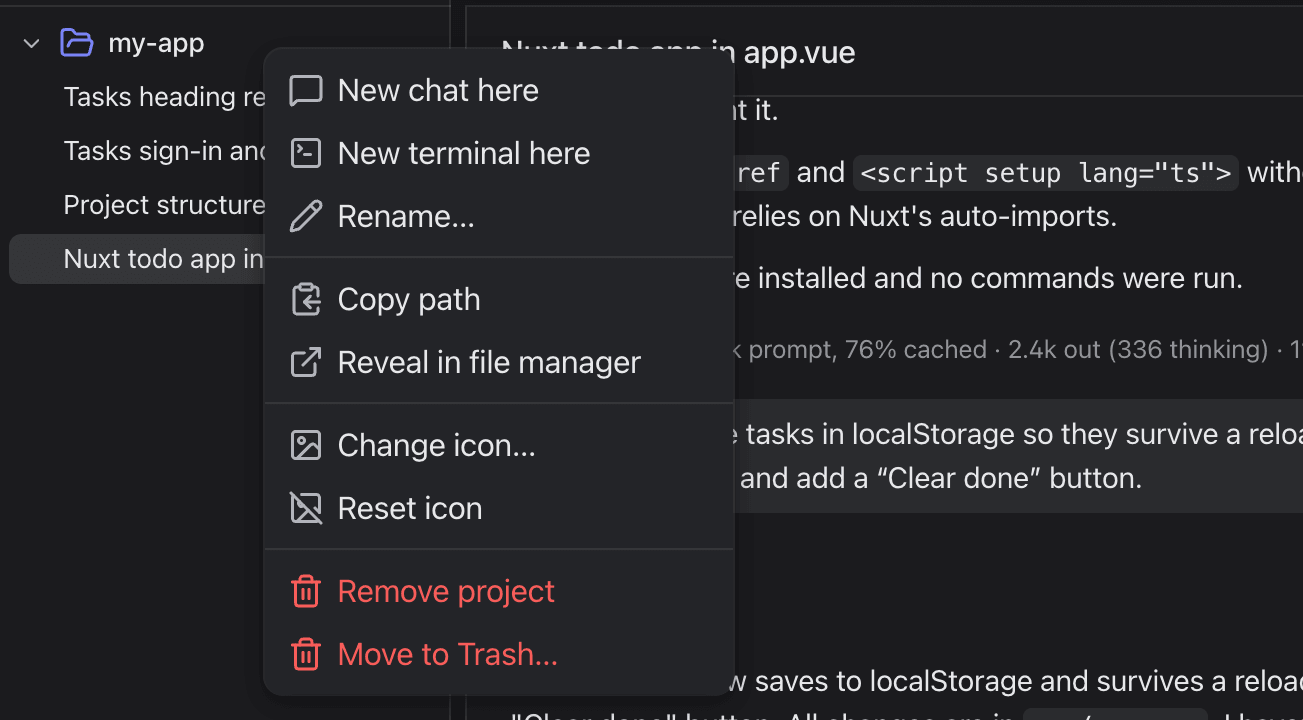
Right-click a project for New chat here, New terminal here, Rename…, Copy path, Reveal in file manager, Change icon… and Remove project. Removing a project only takes it out of the list; the folder stays on disk. A project started from a template can also be sent to the trash with Move to Trash….
A project shows its 20 most recent chats; View all lists the rest. ⌘B hides or shows the column.
Tabs
Chats, files and diffs open as tabs along the top. By default the strip only shows the tabs of the project you are working in; turn on Settings › Tabs & editor › Show tabs from every project to see them all.
| Keys | Does |
|---|---|
⌘1 … ⌘9 | The n-th tab (⌘9, the last) |
⌘⇧[ / ⌘⇧] | The tab to the left / right |
Ctrl+Tab | The next tab |
⌘W | Close the tab |
Explorer
The panel on the right has two tabs: All files and Git (see Git). It folds down to a narrow rail when you need the room.
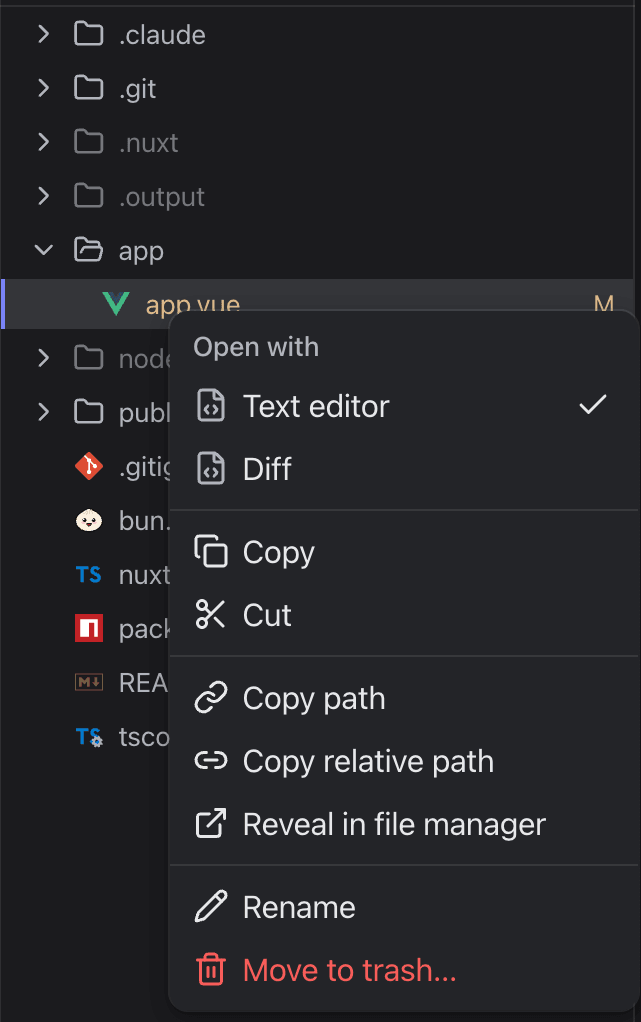
In All files, files are coloured by their git status, and a changed file is marked M. Right-click a file to open it as text or as its diff (Open with), Copy or Cut it, Copy path or Copy relative path, Reveal in file manager, Rename it or Move to trash… — Vey Studio never erases a file outright. A folder also offers New file and New folder.
The editor
Click a file to open it in a tab. The editor highlights some 140 languages, and ⌘S saves.
- Markdown files can be opened in a block editor, with a live preview of headings, lists, tables, pictures and drawings.
- HTML files have a preview.
- Merge conflicts are marked in the file, with Accept Current Change, Accept Incoming Change and Accept Both Changes above each one.
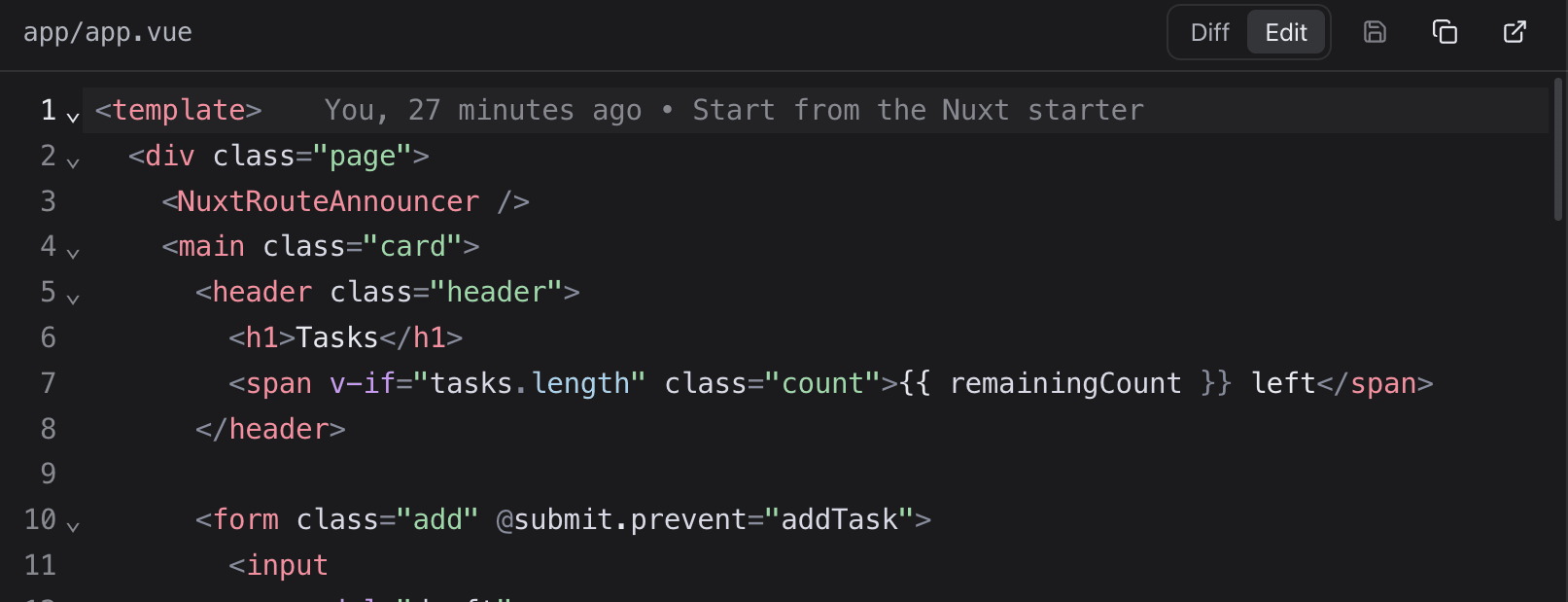
- Who last changed a line — with Settings › Tabs & editor › Show who last changed the line on, the current line ends with its author and commit, like GitLens. Click it for every commit that ever touched that line.
Pictures
Images open in a viewer with an editor behind Edit image: crop, resize, rotate, flip, and draw on it with a pen, rectangles and arrows. Save image writes it back in its own format.