
Chats
A chat is one Claude Code conversation, running in one project's folder. You can have as many open as you like, in as many projects as you like, and they all keep working while you read something else.
Starting a chat
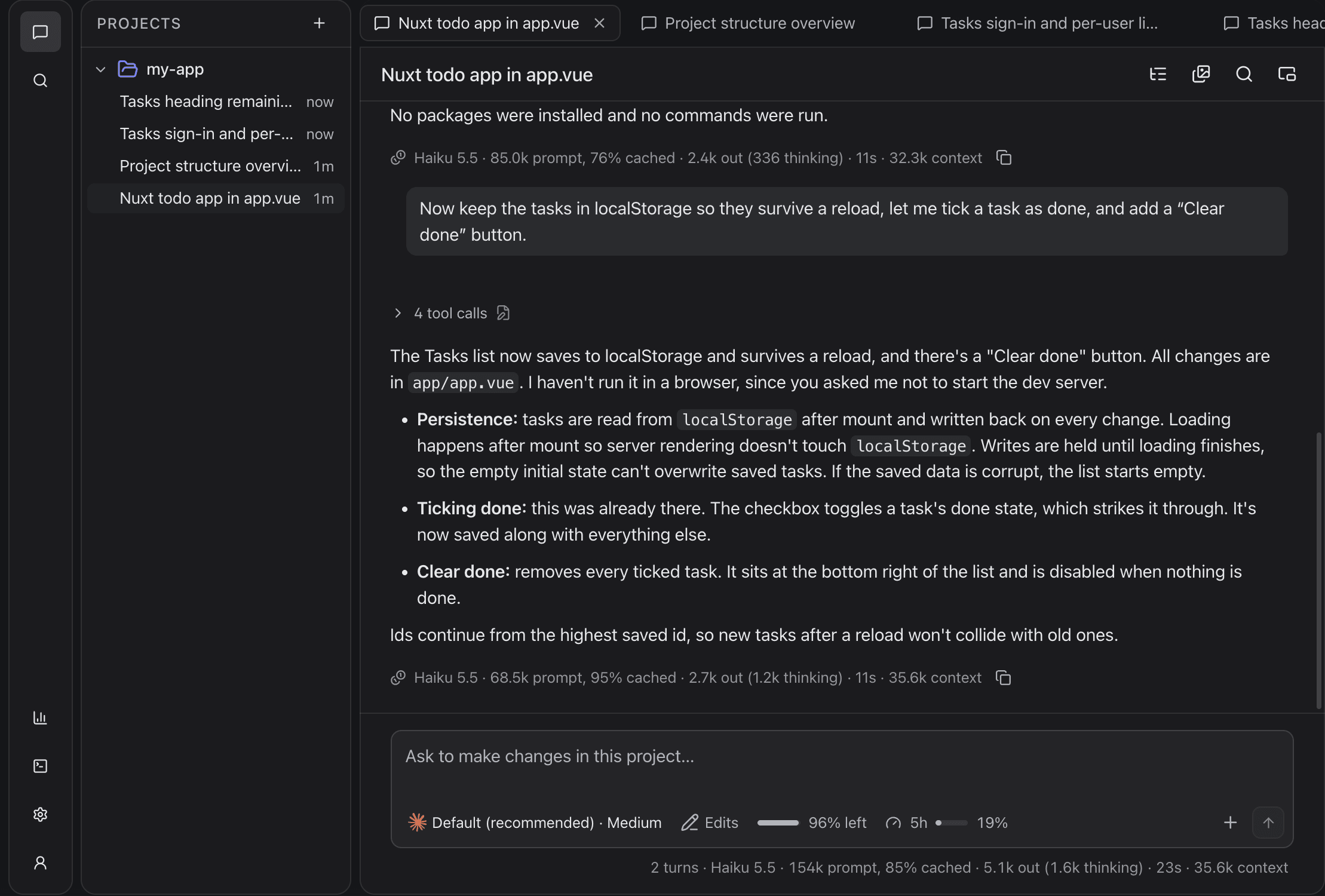
Press + on a project's row, or right-click the project and choose New chat here. The tab opens at once; the chat is saved when you send its first message, so a tab you never typed in leaves nothing behind.
A chat is named after the first thing you ask, then renamed with Claude Code's own title once it has one. Right-click the chat and choose Rename to give it your own — a name you chose is never replaced.
The composer
Everything about how the next message runs is in the bar under the text box:
- Account — which Claude account the chat runs on, or Pay with credits. See Claude accounts.
- Model and effort — Haiku, Sonnet or Opus, and how hard it thinks (Low to Max). Both can be changed between messages without restarting the chat.
- Permission — what the chat may do on its own (below).
- Context left — how much room the conversation has before it is compacted, and the account's five-hour meter.
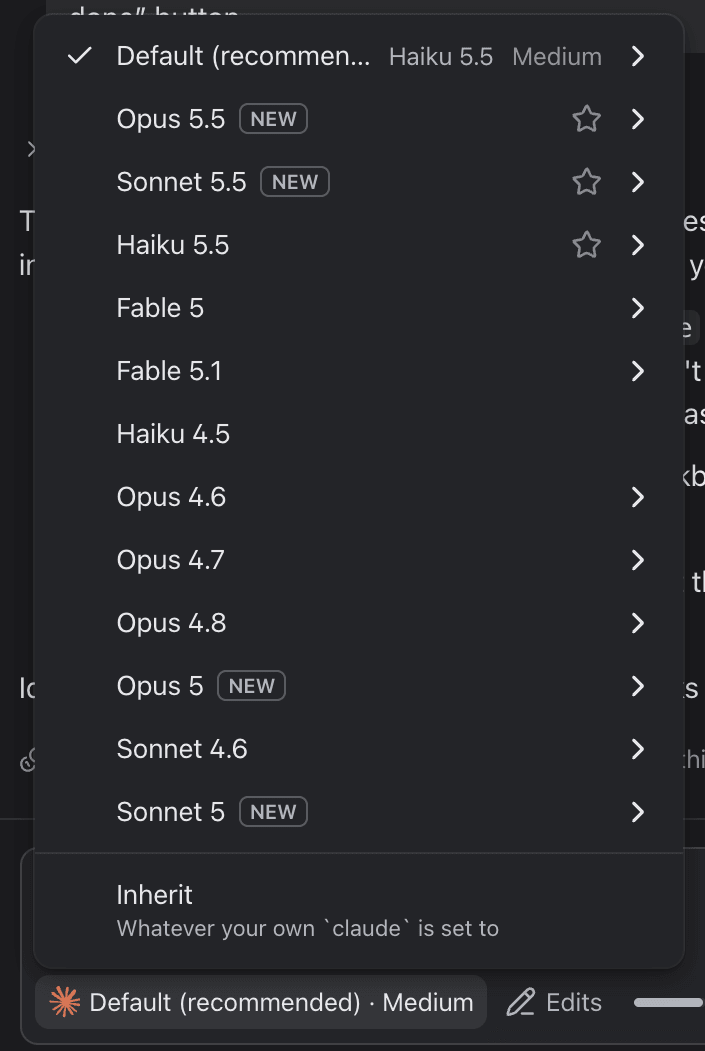
Inherit uses whatever your own claude is set to. Star a model to keep it near the top.
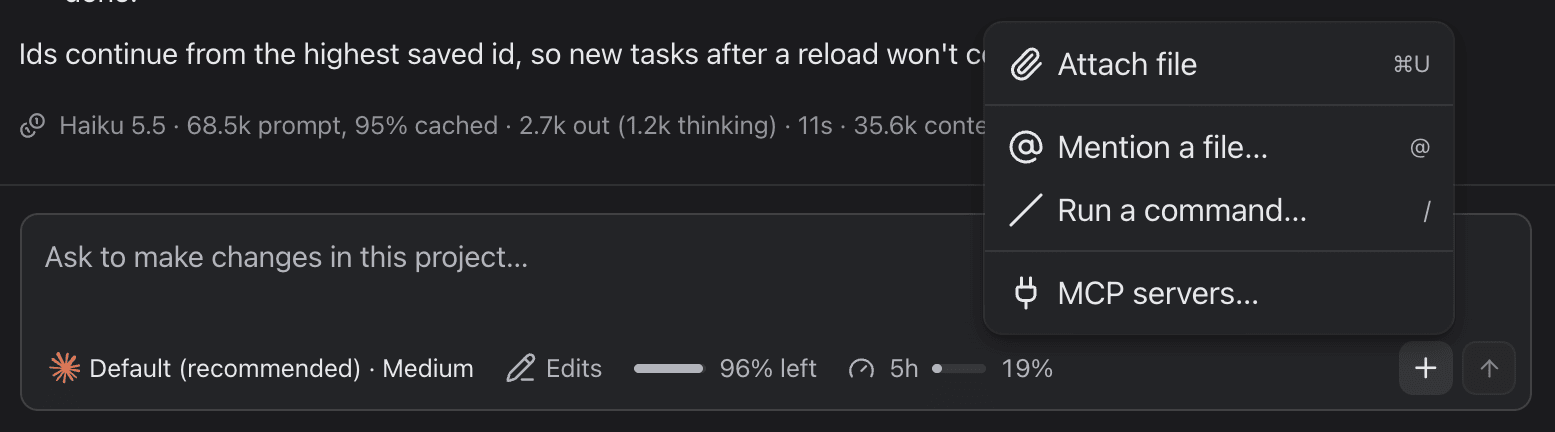
The + at the right of the composer holds the rest: Attach file (⌘U), Mention a file… (@), Run a command… (/, Claude Code's slash commands) and MCP servers….
Press Enter to send and Shift+Enter for a new line.
Permission modes
| Mode | What it does |
|---|---|
| Plan | Reads, and answers with a plan. Changes nothing. |
| Read only | Reads and answers. No edits, no shell. |
| Ask | Asks exactly what the claude CLI would, under your own settings. |
| Edits | Edits files and runs commands in this folder. The default. |
| Full access | Nothing is asked, including tools Vey Studio has not listed. |
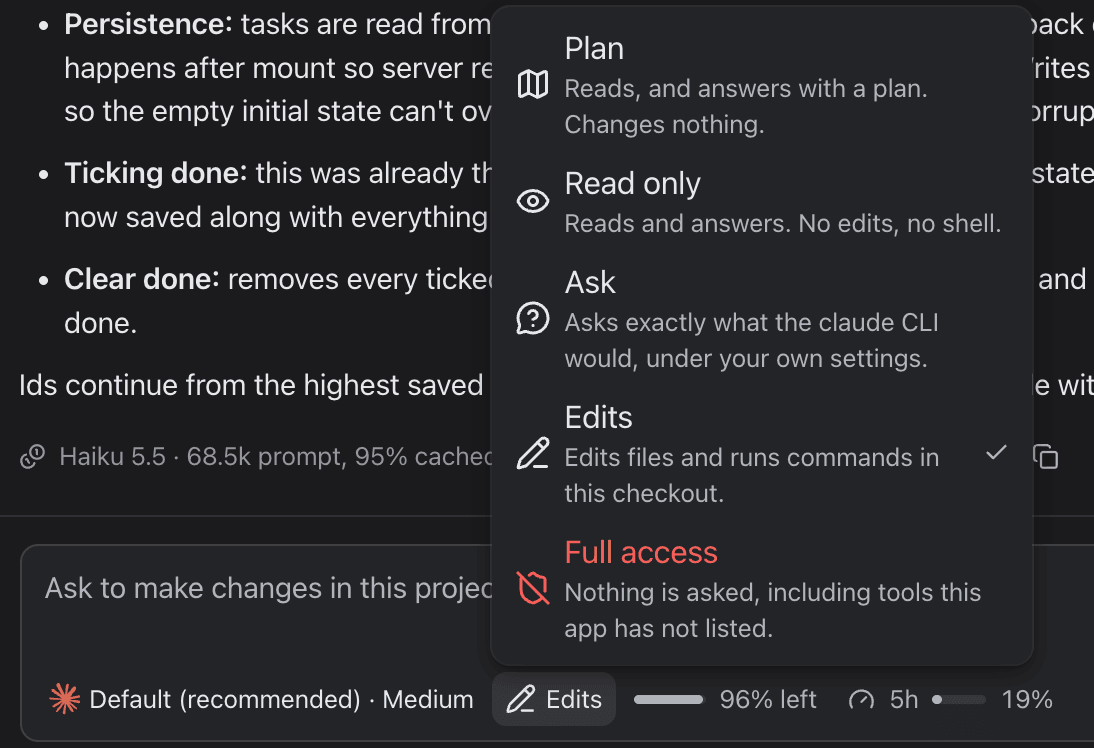
When a chat needs your permission, a card appears above the composer with the call it wants to make. The chat waits — for as long as it takes — until you allow or refuse it. Changing mode mid-chat is cheap: it does not throw away the conversation's cache.
Mentioning files
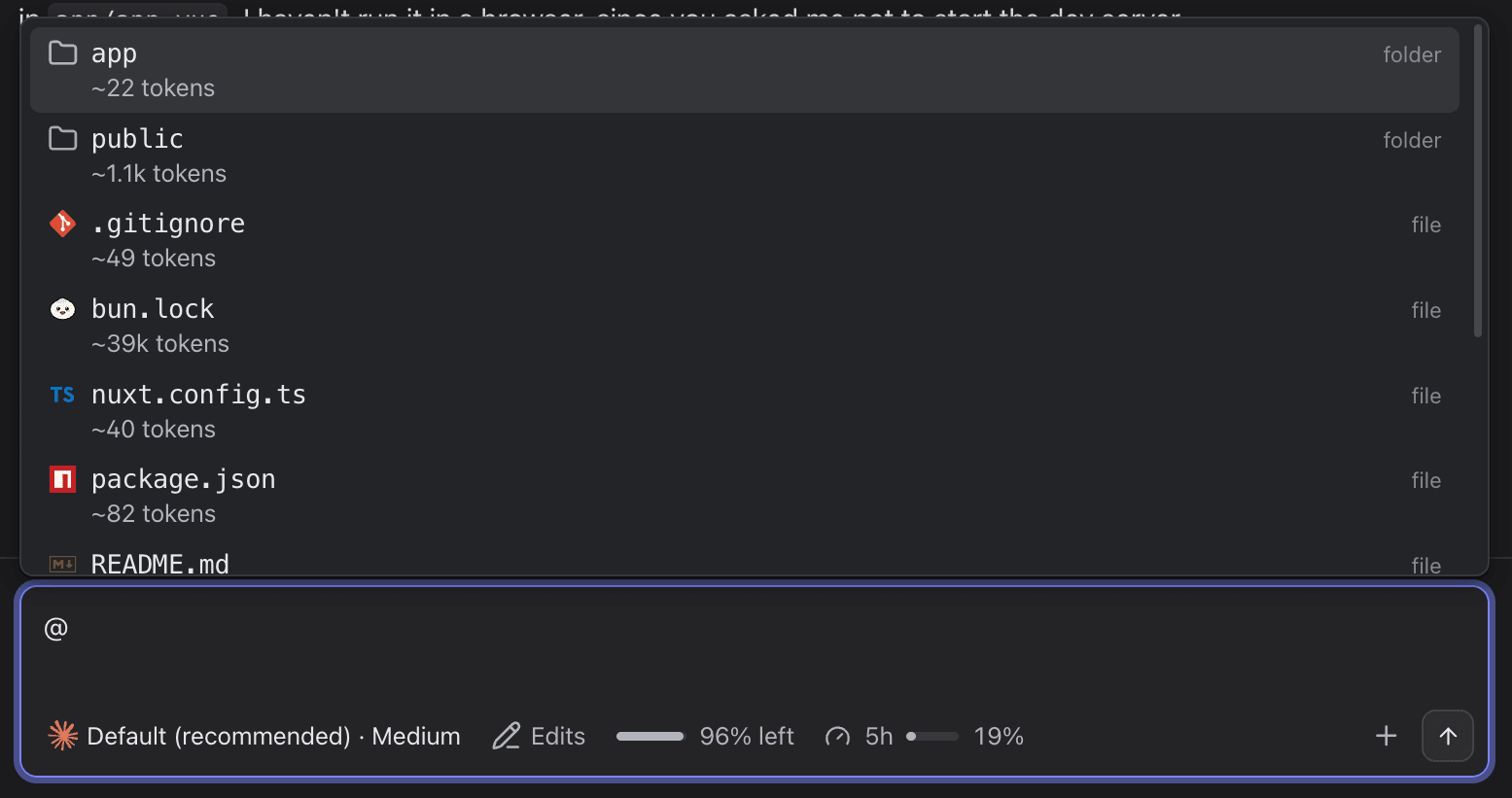
Type @ to pick a file or folder of the project. The mention is just the path, so Claude opens the file as it is now rather than a copy.
Pictures
Paste a screenshot or drop an image into the composer. It is attached as [Image #1], and shows as a thumbnail both in the composer and in the conversation.
Selecting text to reply
Select part of a reply and a Reply button appears beside it: it quotes the selection into the composer so you can ask about exactly that.
While a chat is working
- Keep typing. A message sent while Claude is still working is queued behind the current turn and marked Queued until it is picked up.
- Stop interrupts the turn without closing the chat.
- Background subagents are listed in the chat while they run.
Editing a message
Hover one of your own messages and choose Edit. The conversation is cut back to just before it, and the files Claude changed after it are put back too, then your edited message is sent. Use it to take a different path without starting over.
Finding things in a chat
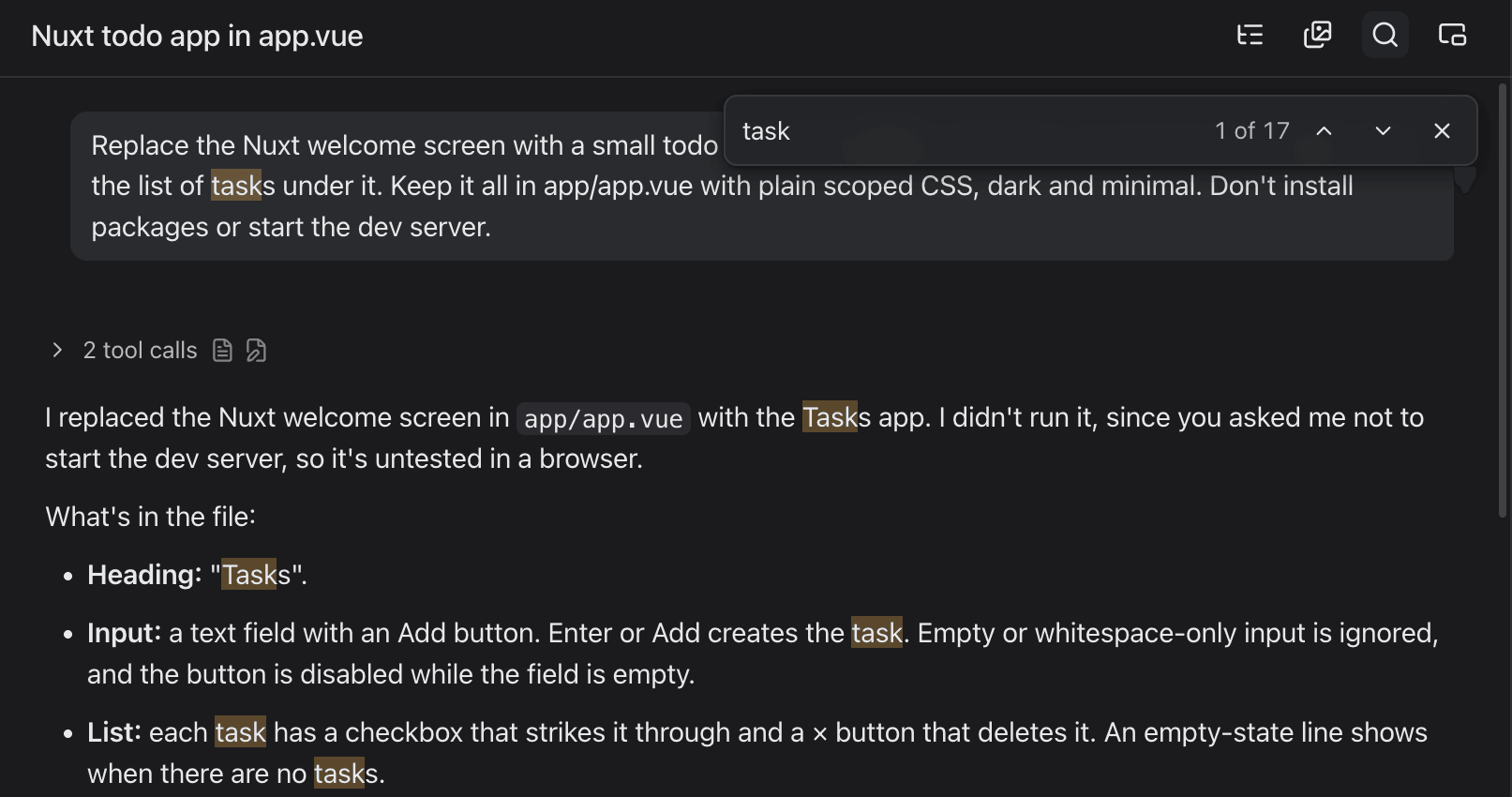
⌘Fopens a find bar over the conversation, including inside folded tool output.- The outline beside the conversation lists every message you sent; click one to jump to it.
MCP servers
The chat uses the MCP servers your own claude already has for that folder — ~/.claude.json, the project's .mcp.json, plugins and claude.ai connectors. Open MCP servers… from the composer's + menu to see them, and switch off any tool or whole server for this chat alone. Changing that list starts a fresh session behind the scenes; the conversation carries on.
Knowing when a chat needs you
You do not have to watch a chat to know where it is:
- A spinner on the chat's row while it works, and a shield when it is stopped on a question. A collapsed project shows a count.
- A dot and a bold title on a chat that answered while you were reading another one — it is unread.
- A notification when a chat finishes, fails or asks something while the window is in the background (switch it off in Settings › Chats).
- A red badge on the app's dock icon counting unread chats and chats waiting on you.
A chat in its own window
The Open in its own window button at the top of a chat pops it out — handy on a second screen. A popped-out chat can be pinned on top of other windows.
Exporting, deleting
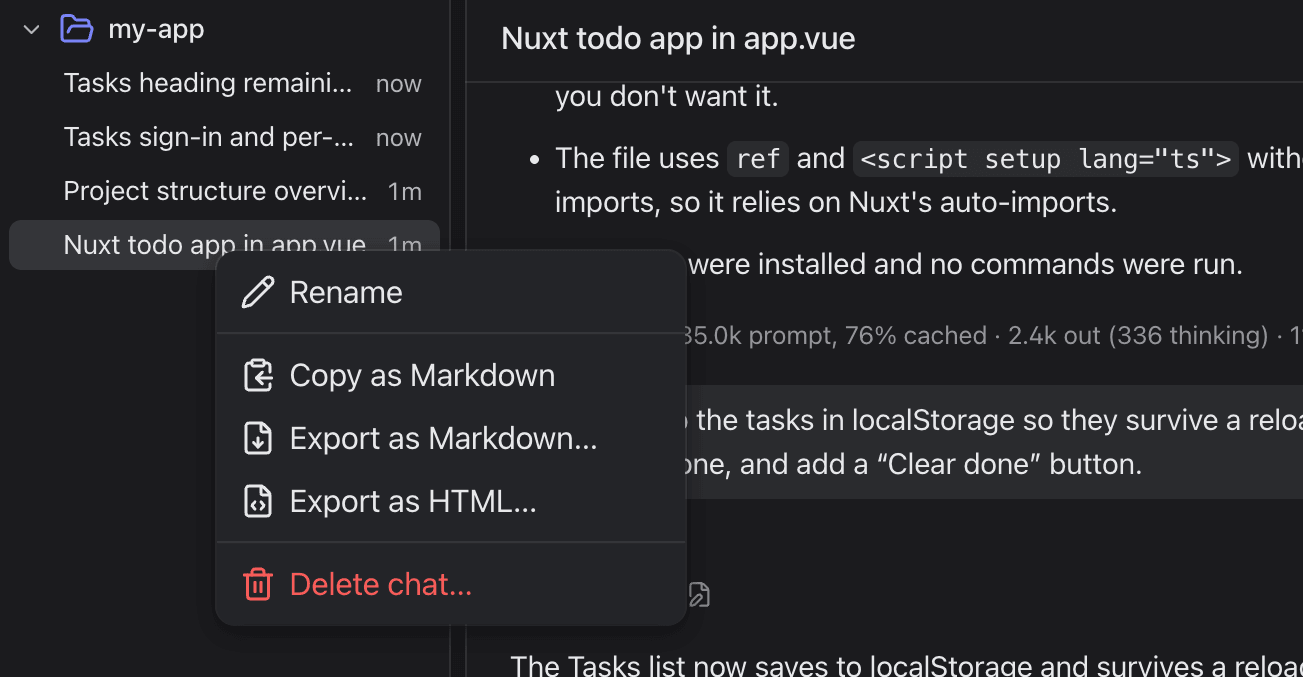
Right-click a chat for Copy as Markdown, Export as Markdown… and Export as HTML…, or Delete chat…. Deleting a chat removes the conversation from Vey Studio, with no undo; it does not touch your files.
Limits and long chats
When an account reaches its limit, switch the chat to another account or to credits from the Account menu — nothing said so far is lost. The meter beside the composer shows how much of the account's five-hour window is used. Very long conversations are compacted automatically by Claude Code.