Claude accounts
Plain Claude Code ties a conversation to one login and stops it at that login's limit. Vey Studio lets you sign in to as many Claude accounts as you have, and move a chat between them without losing it.
Adding an account
- Open Settings (
⌘,) › Claude. - Click Add account and give it a name — Work, Personal, Team.
- Sign in. It is Claude Code's own login, so your password never passes through Vey Studio.
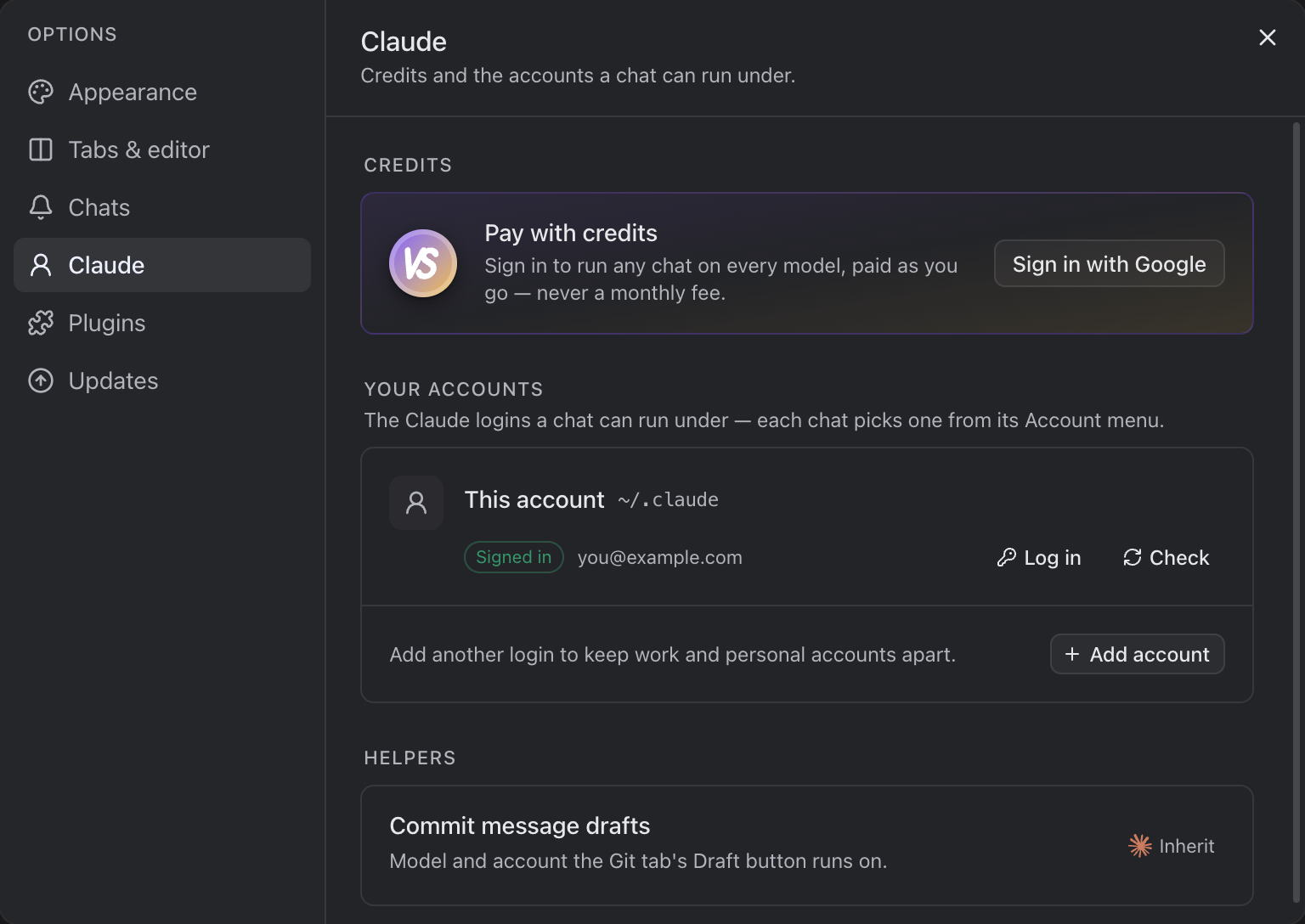
The claude you already use is listed first, as This account. Each account you add is kept in a directory of its own and stays signed in. Every row says whether it is signed in, and as whom — Check asks again, Log in signs that account in once more.
Choosing the account a chat runs on
Every chat has an Account menu in its composer. Pick an account there before you send, and the chat runs on it.
Switching a chat to another account
When an account reaches its limit, open the chat's Account menu and pick another one. The conversation moves with it: your next message carries on with everything said so far — no pasting, no starting over.
If every account is out of its window, pick Pay with credits in the same menu. See Credits.
INFO
Switching is always your choice. Vey Studio never moves a chat to another account, or onto credits, by itself.
How much of a plan is left
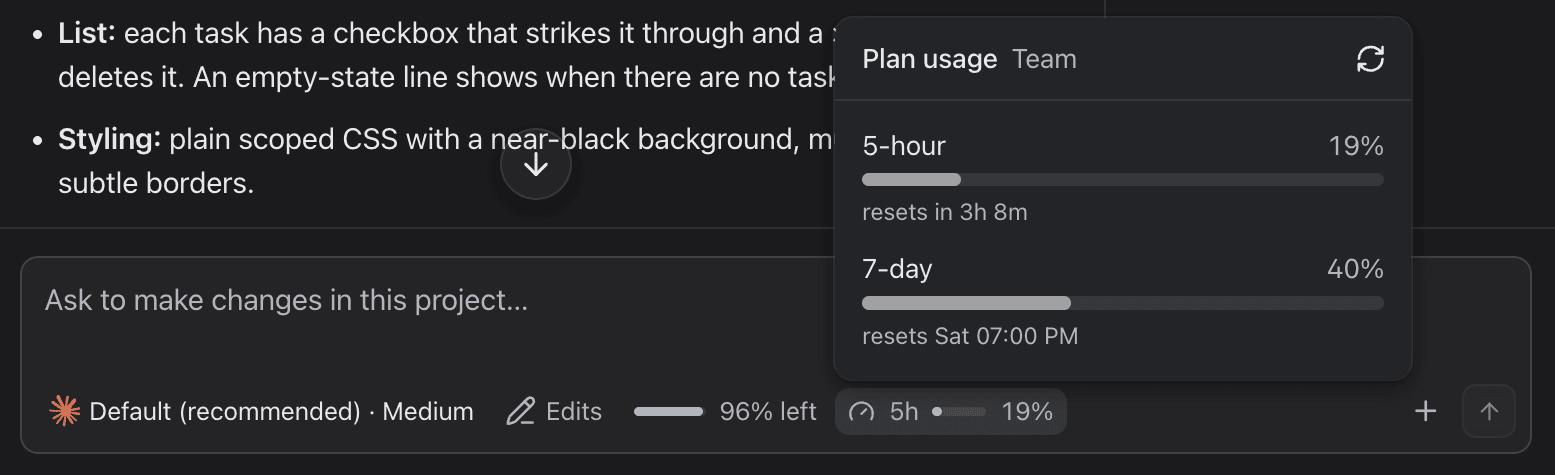
Beside the composer, a meter shows how much of the account's five-hour window has been used. Click it for every window, including the weekly one.